Learn how to use Company Search to find non-local and hard-to-find businesses, understand when to use it vs Local Search, manage credits, and build targeted company lists with key contacts.
Overview
The Company Search feature is built to help sales professionals find and research companies that aren’t easily discovered through Google or traditional local searches. It’s ideal for targeting online businesses, coaches, eCommerce brands, SaaS companies, and niche industries.
In this guide, you’ll learn the difference between Company Search and Local Search, when to use each, and how to run a Company Search step by step to uncover companies and decision-makers efficiently.
Company Search vs Local Search
Understanding when to use each search type is key:
Use Local Search When:
- You’re targeting brick-and-mortar or location-based businesses
- You’re searching industries like plumbers, restaurants, or home services
- You want Google-style local results
Use Company Search When:
- Companies are not easily found on Google locally
- You target:
- Business coaches
- Online brands
- eCommerce businesses (Shopify, Etsy, etc.)
- SaaS or digital-first companies
What You’ll Need Before You Start
- An active Lead Generation Tool account
- Available dollars ($0.12 per company returned)
- A clear idea of the type of company you want to target
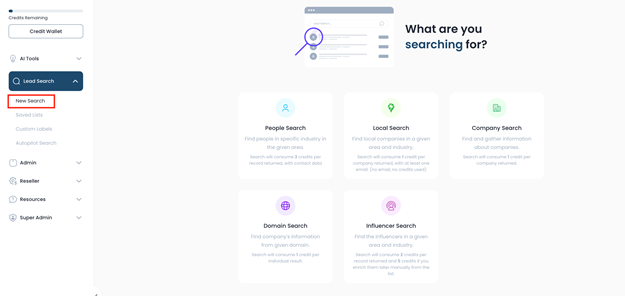
Step 1: Navigate to Company Search
- Log in to your Lead Generation Tool dashboard.
- Go to Lead Search.
- Select Company Search.
Step 2: Enter Company Description
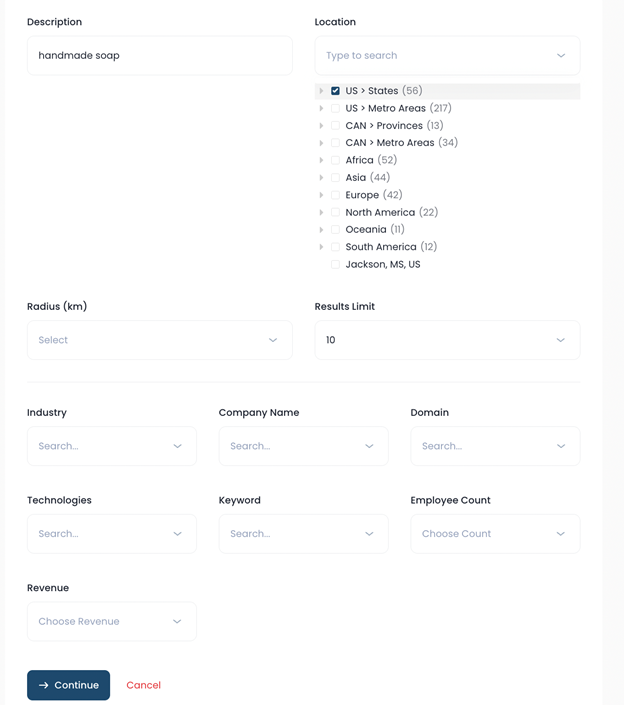
- Use the Description field to describe the type of company you want to find.
- Example:
- Handmade soap or Homemade soap
This field helps the tool identify companies that match your niche.
Step 3: Choose Geographic Area
- Select a geographic region.
- Company Search does not require a narrow local radius.
- Example:
- United States (Continental US)
Step 4: Optional Filters (Advanced Targeting)
You may leave filters blank to keep your search broad, or refine results using:
- Keywords (if not already in the description)
- Industry
- Company name
- Employee size
- Domain type
- Technology provider
Example Technology Filter:
- Search for companies using Shopify if you only want eCommerce brands built on that platform.
Step 5: Run the Search
- Click Continue.
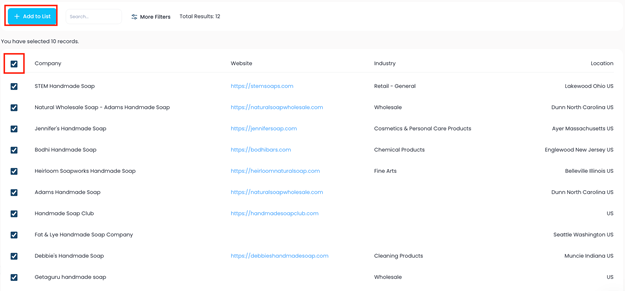
- The lead generation tool will return a preview list of companies.
Example:
- 10 companies returned
Step 6: Load More Results (Optional)
- Scroll down in the results.
- Click Load More to retrieve additional companies.
- Add more results as needed.
Step 7: Select Records and Create a List
- Select individual companies or choose Select All.
- Click to add them to a list.
- If you don’t have a list yet:
- Choose Create New List
- Name your list clearly (example: Handmade Soap Companies)
- Confirm to continue.
Dollar Usage Reminder: $0.12 is deducted per company returned.
Step 8: Access Your Saved List
- Click Go to List on the right-hand side.
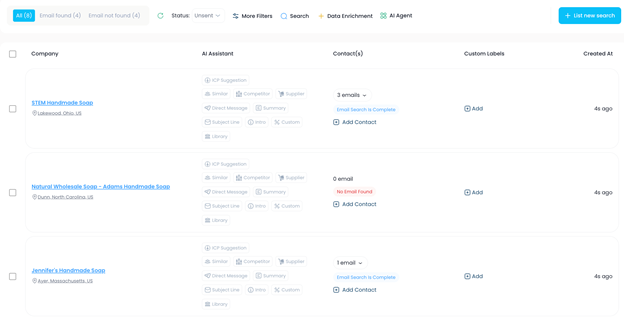
- Review all companies added from your Company Search.
Step 9: Review Company & Contact Information
Within your list, you can view:
- Company details
- AI Assistant tools and prompts
- Available contacts (including owners when available)
- Contact roles and positions
- Custom labels for tracking
- Date each record was created
This gives you everything you need to prepare for outreach.
Step 10: Take Action with AI Tools
From your Company Search list, you can:
- Use the AI Assistant to generate summaries or insights
- Identify decision-makers inside each company
- Apply custom labels for follow-up management
- Organize outreach workflows
Best Practices
- Use Company Search for online-first or niche businesses
- Keep searches broad first, then narrow with filters
- Combine Company Search with AI insights before outreach
- Organize companies into clearly named lists
Was this article helpful?
That’s Great!
Thank you for your feedback
Sorry! We couldn't be helpful
Thank you for your feedback
Feedback sent
We appreciate your effort and will try to fix the article