This article provides a step-by-step guide to adding and removing access to your account .
Overview
Giving your team members access to your account is a great way to help ensure your account stays secure and a single password isn't shared among several team members.
Step 1: Navigate to Manage Team
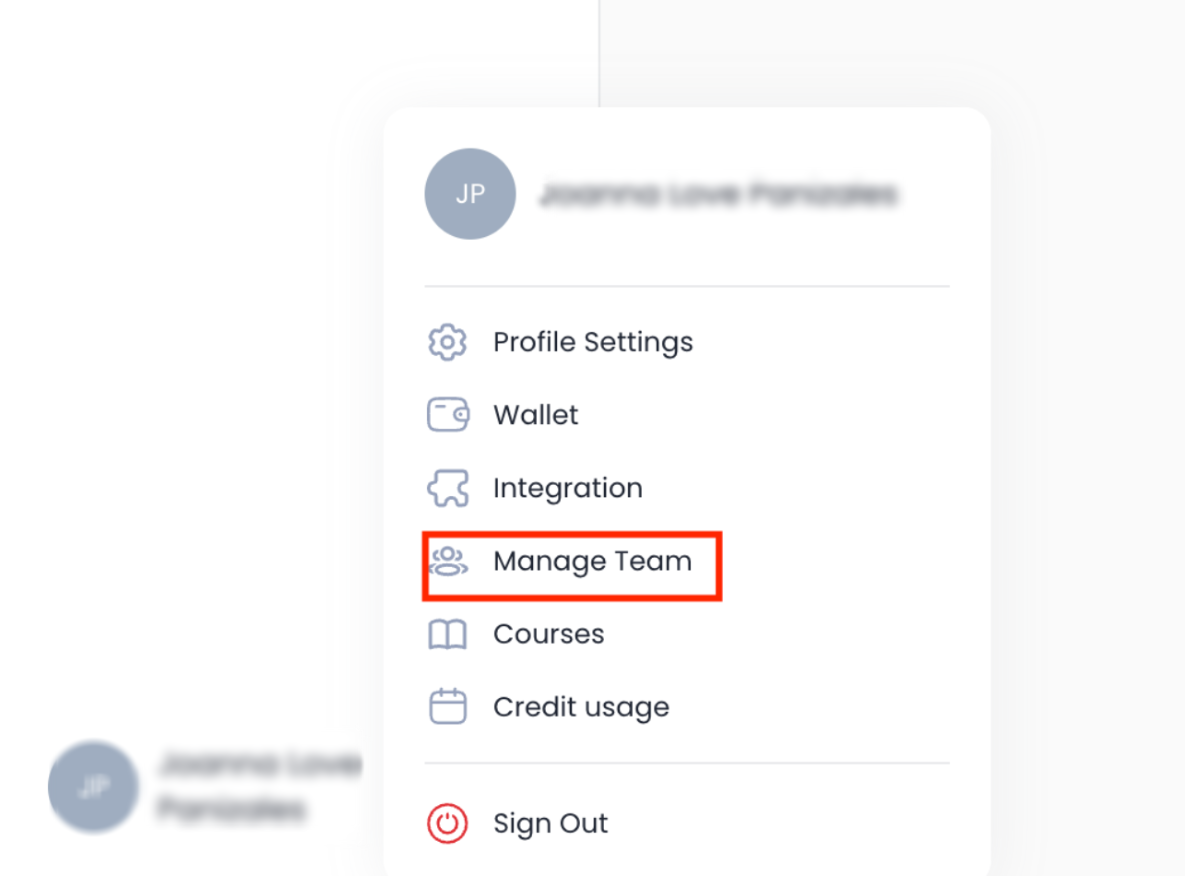
Start by clicking on your profile icon in the bottom left corner of the tool, then select 'Manage Team' from the menu.
Step 2: Add Team Members
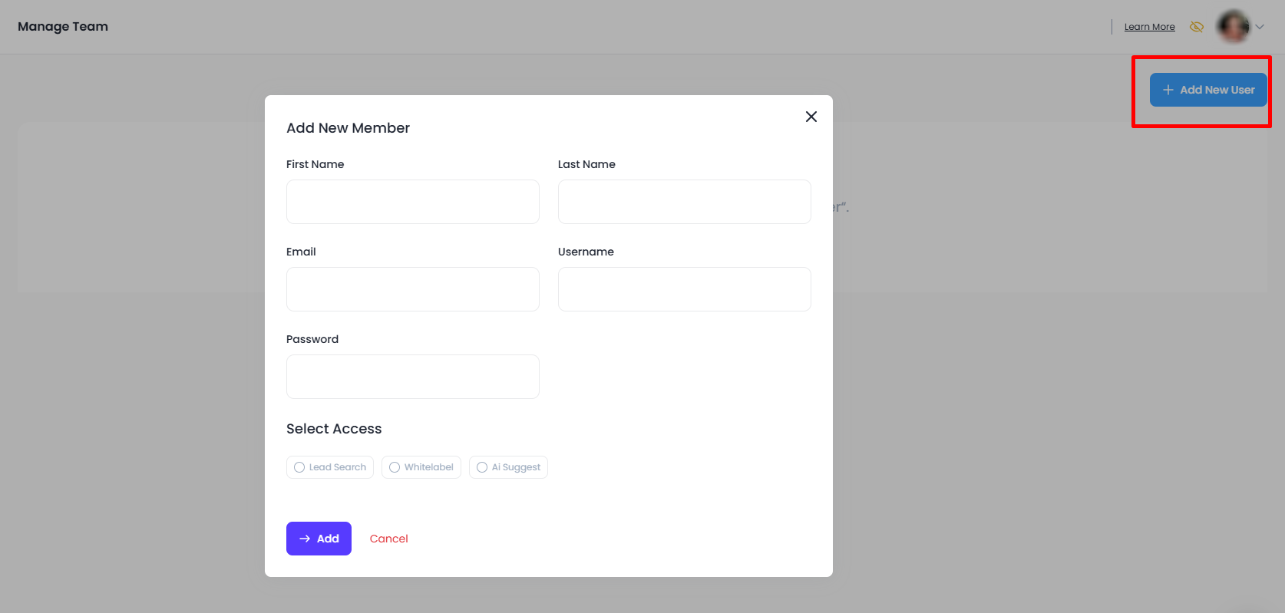
Click 'Add New User' to add team members to your account.
Next, fill in their info, create a username/password, and choose what they can access.
Step 3: Add to the account
Finally, click 'Add' to add the new team member. The team member's info and access can be updated anytime by clicking on the purple pencil icon under 'Actions.'

Was this article helpful?
That’s Great!
Thank you for your feedback
Sorry! We couldn't be helpful
Thank you for your feedback
Feedback sent
We appreciate your effort and will try to fix the article